
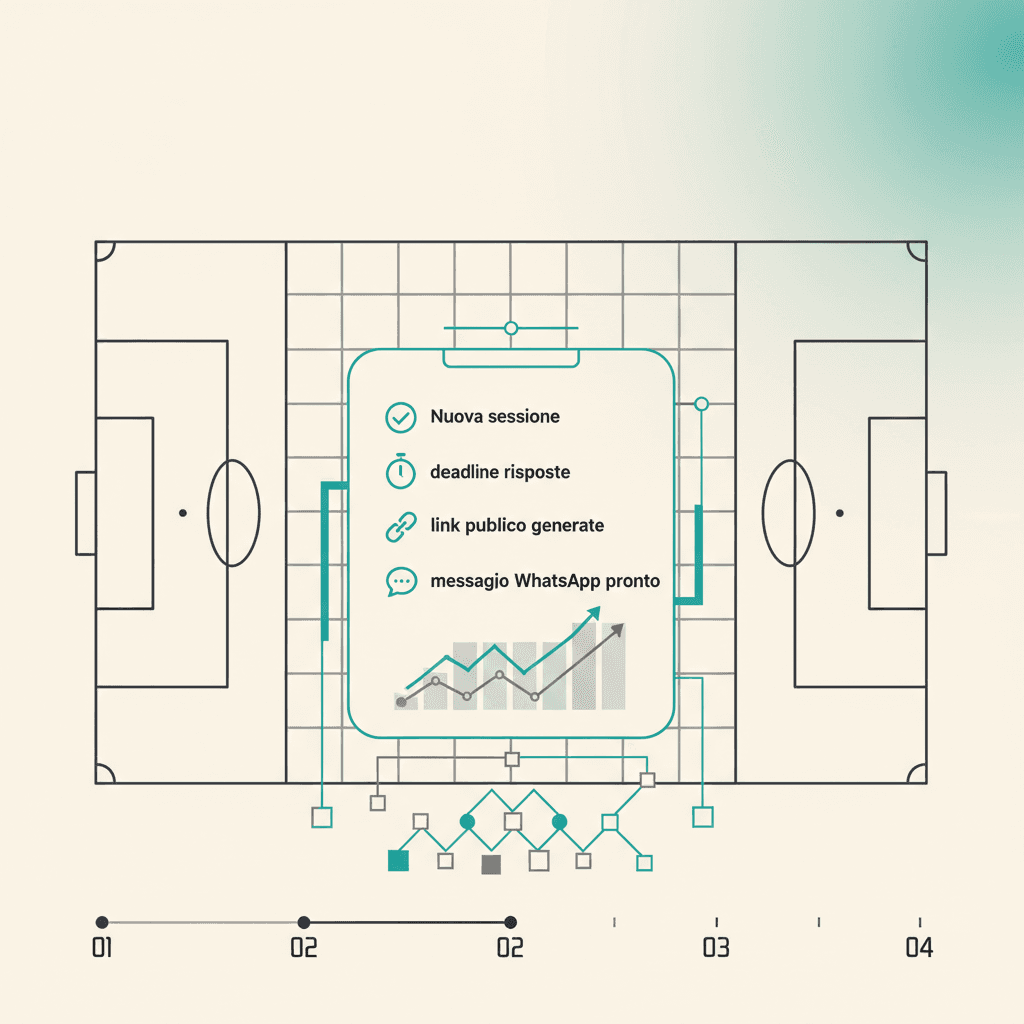
A session is any event you want to track: training, a match day, or several matches in the same evening. Create one from Sessions → New session, in three steps.
1. Type, date, deadline
Open the wizard. Decide if the session contains matches (has_matches) or is training-only. Set start date and time (default 21:30 tomorrow) and a response deadline (default 18:00 the same day). Deadline auto-tracks the event date unless you've already tweaked it.
Title and location are optional: if blank, the app generates Training {date} or Match day {date}. There's also an Include guests toggle: when on, players marked as guest also receive the response link.
2. (Optional) the day's matches
If you turned on has_matches, add one row per match in the session: opponent, competition (league, cup, friendly...), kickoff time, home/away. You can have multiple matches per session: the response list is shared, but in Mondo FC each match keeps its own result and lineup.
3. Publish and share the link
Hit Create session. Right after, the app generates a public token and shows:
- the public page link (format
app.elevenbase.pro/?t=<token>) with a Copy link button - a Copy WhatsApp text button with a ready-made message: title, formatted date and time (e.g. Wed 14 May · 21:30), location when set, link
Paste the message into chat, and from there you watch replies land live inside the session. Nothing to remember by hand.
Stuck or spotted a mistake? Email coach@elevenbase.pro or browse the other guides.