
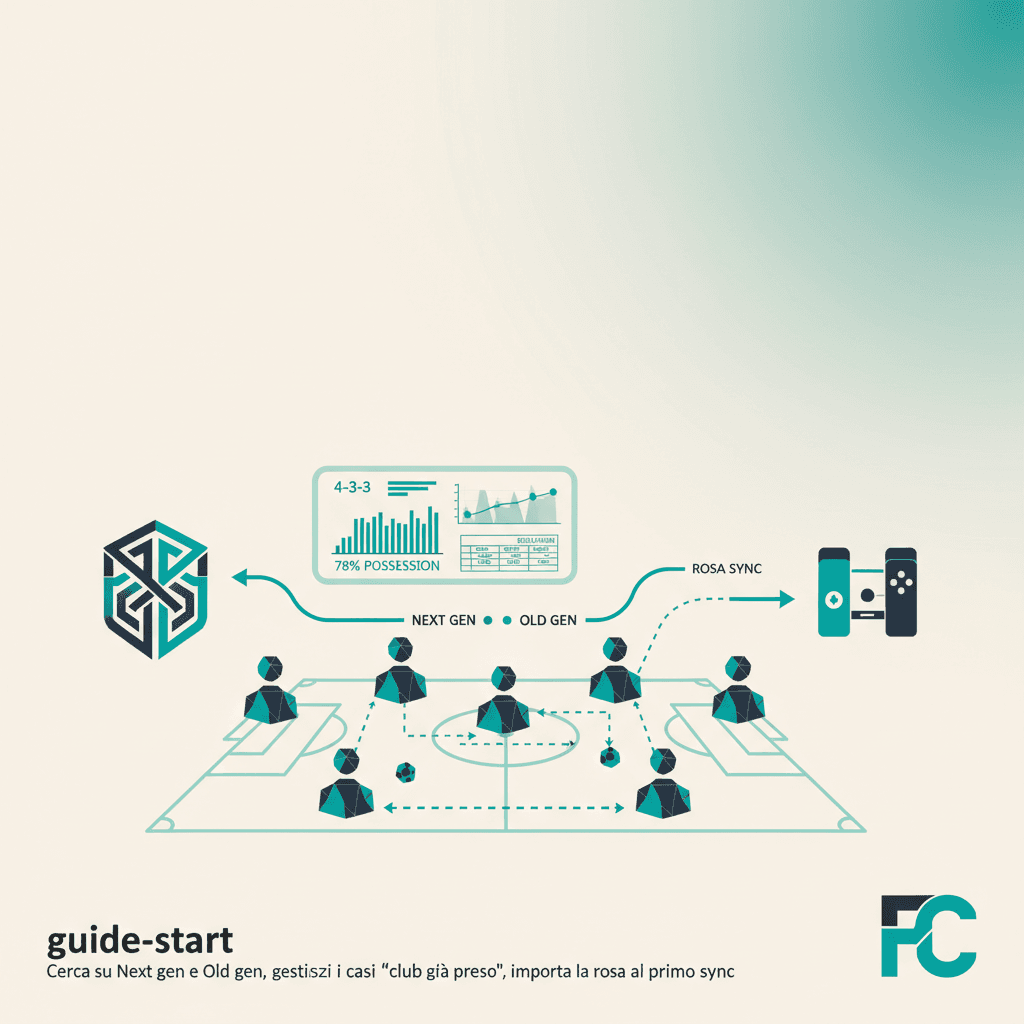
The EA Sports FC club is the automatic source for Mondo FC stats: every 11-v-11 online match of the club gets imported without manual steps, with goals, assists, ratings, MOTM and lineup. A single search activates it.
1. Where to search from
You can link the EA club in two places: during team onboarding (the Search your EA club box) or later from Mondo FC → Club inside the app, via Change / link club. The search is the same: type two or more characters of the club name, 250 ms debounce, results from a Supabase edge function called search-ea-clubs.
2. Next gen and Old gen, queried together
EA exposes two separate catalogues: common-gen5 for new-gen consoles (PS5, Xbox Series, PC) and common-gen4 for old-gen (PS4, Xbox One). ElevenBase queries both in parallel and merges results, badging each row with Next gen or Old gen. Pick the right one: wins/draws/losses and stats will only follow that club going forward.
3. "Club already associated"
An EA club can be linked to a single ElevenBase team. If you try to pick one that's already taken, you get an explicit error with the club name, ID and an invite to email coach@elevenbase.pro if you think it's a mistake. The check runs via the is_ea_club_taken RPC before team creation.
4. What happens on first link
- ElevenBase stores
ea_club_idandea_platformon the team. - Triggers the
sync-ea-clubedge function: pulls recent matches, club members and stats snapshot. - Creates a player stub for each EA member, with
ea_account_handlepre-populated. You can rename them later and assign role and shirt number.
5. Periodic syncs
After the first link, a Supabase cron job re-reads matches and refreshes data on a regular interval. To force an import now, in Mondo FC use Import EA snapshot and Sync now as manual actions.
Stuck or spotted a mistake? Email coach@elevenbase.pro or browse the other guides.